How to Automate Business Workflows with AI: A Practical Guide for 2026
Step-by-step guide to automating business workflows with AI in 2026. Learn how to identify automation opportunities, choose the right tools, build workflows, and measure success.

How to Automate Business Workflows with AI: A Practical Guide for 2026
Most businesses waste hours on repetitive tasks that AI could handle in seconds.
This guide walks you through the entire process of automating business workflows with AI. From identifying the right opportunities to building and measuring your automations.
Key Takeaways
- Start by mapping your current workflows before automating anything
- Look for repetitive, time-consuming tasks that follow clear rules
- Choose no-code tools if you're not technical (Zapier, Make, n8n)
- Test your automation with a small pilot before scaling
- Track metrics like time saved, errors reduced, and ROI
- Keep humans in the loop for critical decisions
Who Is This Guide For?
This guide is for:
- Business owners and founders
- Operations managers
- Marketing and sales leaders
- IT managers
- Anyone who wants to work smarter, not harder
What Is AI Workflow Automation?
AI workflow automation is the use of artificial intelligence to automate sequences of tasks, decisions, and processes.
Think of it this way:
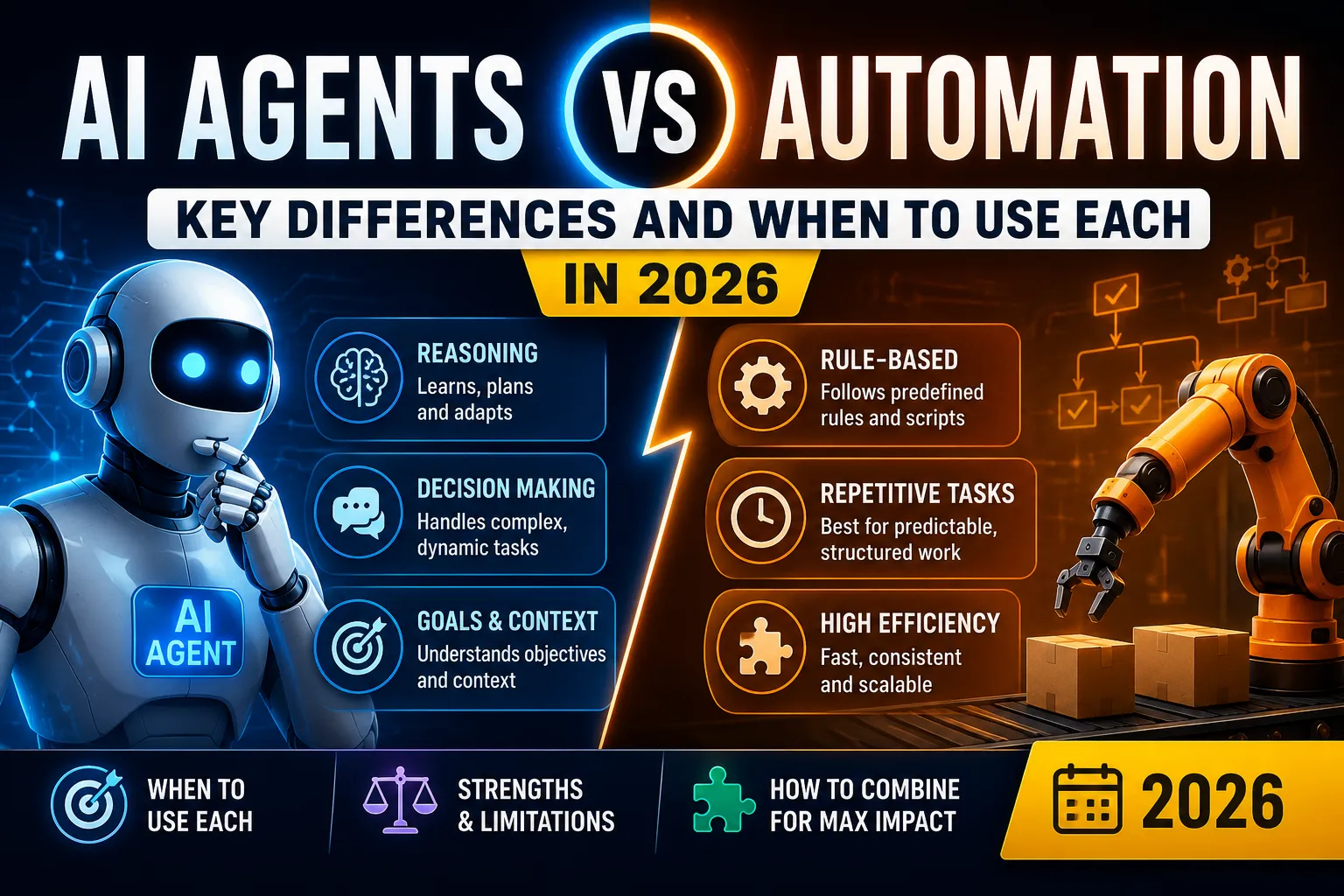
Traditional automation follows rules like: "If X happens, do Y."
AI automation adds intelligence: "If X happens, analyze the context, make a decision, and execute the appropriate action."
Example:
Traditional automation: When a new lead fills out a form, send them a welcome email.
AI automation: When a new lead fills out a form, analyze their company size, job title, and behavior, then decide if they're a high-value lead. If yes, route them to a sales rep. If no, add them to a nurture sequence.
Step 1: Identify Automation Opportunities
What to Look For
Good candidates for automation share these characteristics:
- Repetitive – Done daily, weekly, or monthly
- Time-consuming – Takes 10+ minutes per instance
- Rule-based – Follows clear patterns and rules
- Data-intensive – Involves data entry, sorting, or analysis
- Prone to error – Mistakes happen when done manually
Common Workflows to Automate
How to Find Automation Opportunities
Method 1: Track Your Time
For one week, write down every task you do and how long it takes. At the end of the week, look for tasks that repeat frequently and take significant time.
Method 2: Ask Your Team
Survey your employees: "What tasks do you do daily that are boring, repetitive, or frustrating?"
Method 3: Analyze Your Data
Look at your email logs, CRM, and support tickets. Which tasks appear most frequently?
Method 4: Use the "90% Rule"
If a task is 90% the same every time, it's a good candidate for automation. The remaining 10% can be handled by a human.
For real-world examples of automated workflows, read our guide on AI Automation Examples.
Step 2: Map Your Current Workflow
Why Mapping Matters
You can't automate what you don't understand. Mapping your workflow helps you:
- Visualize every step
- Identify bottlenecks
- Spot redundant steps
- Understand decision points
- Measure time spent
How to Map a Workflow
Step 1: Document every step
Write down each step from start to finish. Be specific.
Example: Lead Follow-up Workflow
- New lead fills out contact form
- Lead data is added to CRM
- Sales rep receives notification
- Sales rep researches the lead (company, industry, pain points)
- Sales rep sends personalized email
- If no response after 3 days, send follow-up email
- If no response after another 3 days, send final follow-up
- If still no response, move to cold list
Step 2: Note who does each step
- Step 1-2: System (automatic)
- Step 3-7: Sales rep (manual)
- Step 8: System (automatic)
Step 3: Measure time for each manual step
- Step 3: 1 minute (notification)
- Step 4: 5-10 minutes (research)
- Step 5: 5 minutes (write email)
- Step 6-7: 3 minutes each (follow-ups)
Total manual time: 15-20 minutes per lead
Step 4: Identify bottlenecks and pain points
- Research takes the longest time
- Writing personalized emails is repetitive
- Following up manually is easy to forget
Mapping Tools
- Pen and paper – Simple and effective
- Flowchart tools – Lucidchart, Diagrams.net, Miro
- Workflow tools – Zapier, Make, n8n (they let you build as you map)
Step 3: Design Your Automated Workflow
Choose Your Automation Approach
Design Principles
1. Keep it simple
Start with the core flow. Add complexity later.
2. Include human checkpoints
Not everything should be automated end-to-end. Include places where humans review and approve.
3. Build in error handling
What happens if an API fails? What if data is missing? Plan for it.
4. Log everything
Track every action your automation takes. This helps with debugging and auditing.
Workflow Design Example
Before automation (manual):
- Lead submits form (system)
- Sales rep researches lead (human)
- Sales rep sends email (human)
- Sales rep follows up (human)
- Lead converts or is dropped (system)
After automation (AI-powered):
- Lead submits form (system)
- AI enriches lead data (company size, industry, location) (AI)
- AI scores lead based on fit (AI)
- If high score: → Sales rep gets notification and drafting prompt (system)
- If medium score: → AI sends nurture email (AI)
- If low score: → Lead added to newsletter list (system)
- Lead converts or is tracked (system)
Time saved per lead: 15-20 minutes → 2-3 minutes
For a detailed comparison of automation tools, read Zapier vs Make vs n8n: Which AI Automation Tool Wins?.
Step 4: Choose Your Automation Tools
Types of Tools You'll Need
1. Workflow Automation Platform
The central hub that connects your apps and triggers actions.
- No-code: Zapier, Make, n8n
- Low-code: Pipedream, Microsoft Power Automate
- Enterprise: Workato, Tray.io
2. AI Services (if you need AI capabilities)
- OpenAI API – For text generation, summarization, classification
- Google Cloud AI – For vision, translation, natural language
- Anthropic Claude – For advanced reasoning and decision-making
- Hugging Face – For open-source AI models
3. App Integrations
The tools you already use: CRM, email, Slack, Google Sheets, etc.
Quick Comparison
How to Choose
Ask yourself:
- What's your budget?
- What's your technical skill level?
- How many apps do you need to connect?
- How complex are your workflows?
- Do you need AI capabilities?
Recommendations:
- Small business, no coding: Start with Zapier
- Visual builder preference: Try Make
- Developer team: Use n8n or Pipedream
- Enterprise: Workato
Step 5: Build Your Automation
Step-by-Step Building Process
1. Start Simple
Build the basic version first. Test it. Then add complexity.
2. Test with Real Data
Use actual data (or close-to-real data) for testing. Synthetic data might not catch real-world issues.
3. Monitor First Runs
Watch your automation closely for the first week. Look for:
- Errors or warnings
- Unexpected behaviors
- Performance issues
4. Iterate and Improve
Based on what you observe, make adjustments.
5. Document Everything
Write down how your automation works, when it runs, and who to contact if something breaks.
Common Building Mistakes
Mistake 1: Over-complicating the first version
Start simple. You can add complexity later.
Mistake 2: Not testing edge cases
What happens if data is missing? What if an API is down?
Mistake 3: Forgetting error handling
Plan for failures. Log errors. Send alerts.
Mistake 4: Not involving end-users
Ask the people who will use the automation for feedback.
Step 6: Test Your Automation
Testing Checklist
- Trigger works correctly
- All data is captured correctly
- Each action completes successfully
- Decisions are made correctly
- Errors are handled gracefully
- Notifications are sent where needed
- Logs are generated properly
- Human checkpoints work
Testing Methods
Method 1: Dry Run
Run through the workflow manually with a sample case. Note every step.
Method 2: Shadow Mode
Run your automation alongside your manual process, but don't apply the automation results. Compare outcomes.
Method 3: Pilot
Test on a small subset of real cases. Start with 10-20 cases. Then scale.
What to Test
- Happy path: Everything works perfectly
- Edge cases: Missing data, unusual inputs
- Error cases: API failures, timeouts, bad responses
- Performance: Speed, volume, resource usage
Step 7: Deploy and Monitor
Deployment Checklist
- All tests passed
- Documentation is complete
- Team is trained (if needed)
- Monitoring is set up
- Alerts are configured
- Rollback plan is ready
Monitoring Metrics
- Success rate – Percentage of workflows that complete successfully
- Error rate – Percentage that fail
- Processing time – Average time per workflow
- Volume – Number of workflows per day/week/month
- Cost – Cost per workflow (API calls, tool usage)
Monitoring Tools
- Built-in logs – Most workflow tools have logging
- Analytics tools – Google Analytics, Mixpanel (if relevant)
- Error tracking – Sentry, Datadog (for advanced setups)
Step 8: Measure Success
Key Metrics to Track
Time saved:
- Before automation: manual time per task × number of tasks
- After automation: automated time per task × number of tasks
- Savings: Before - After
Example:
- Manual: 20 minutes/lead × 100 leads = 2,000 minutes = 33 hours
- Automated: 3 minutes/lead × 100 leads = 300 minutes = 5 hours
- Savings: 28 hours/month
Error reduction:
- Before: 5% error rate (5 mistakes per 100 tasks)
- After: 1% error rate (1 mistake per 100 tasks)
- Improvement: 80% fewer errors
Cost savings:
- Labor cost saved + revenue generated from faster processes
Measuring ROI
For a detailed guide on measuring ROI, read How to Measure ROI from AI Automation.
Step 9: Scale and Optimize
When to Scale
Scale when:
- Your pilot is successful
- You've addressed all issues
- Your team is comfortable with the process
- You have clear metrics
Scaling Strategies
1. Automate more steps
Add additional steps to your existing workflow.
2. Automate similar workflows
Apply the same pattern to other departments or processes.
3. Automate more complex workflows
Gradually increase complexity as you gain confidence.
4. Connect more tools
Integrate more apps to create end-to-end automation.
Optimization Strategies
- Reduce processing time – Optimize API calls, reduce waiting times
- Improve accuracy – Better data, better AI models
- Reduce costs – Optimize tool usage, choose cheaper alternatives
- Increase reliability – Better error handling, redundancy
Common Mistakes to Avoid
Mistake 1: Automating Without Mapping
Don't: Start building without understanding the current workflow.
Do: Map everything before you build.
Mistake 2: Skipping Testing
Don't: Deploy immediately after building.
Do: Test with real data, edge cases, and failures.
Mistake 3: Ignoring Humans
Don't: Automate everything end-to-end without human review.
Do: Include human checkpoints for critical decisions.
Mistake 4: Forgetting Maintenance
Don't: Set it and forget it.
Do: Monitor, optimize, and update regularly.
Mistake 5: Not Measuring
Don't: Automate without tracking results.
Do: Measure time saved, errors reduced, and ROI.
Real-World Examples
Example 1: Lead Qualification for a B2B SaaS Company
Challenge: Sales team spending 20 minutes on each lead, evaluating fit and intent.
Solution: AI workflow that:
- Enriches lead data (company size, industry, location)
- Scores leads based on fit and intent signals
- Routes high-score leads to sales
- Adds low-score leads to a nurture sequence
Result: 80% reduction in time spent on lead qualification. 25% increase in conversion rate.
Example 2: Customer Support Ticket Routing
Challenge: 500+ tickets per week, manual routing causing delays.
Solution: AI workflow that:
- Reads ticket content
- Identifies urgency and category
- Routes to the right agent
- Provides answer suggestions to the agent
Result: Response time dropped from 4 hours to 15 minutes. Agent satisfaction improved.
Example 3: Invoice Processing
Challenge: 300 invoices per month, manual data entry causing errors.
Solution: AI workflow that:
- Extracts data from PDF invoices (vendor, amount, date)
- Validates against purchase orders
- Enters data into accounting software
- Flags mismatches for human review
Result: Error rate dropped from 5% to 0.5%. Processing time reduced by 80%.
Conclusion
Automating business workflows with AI is not just about saving time—it's about enabling your team to focus on higher-value work.
Your next steps:
- Identify one workflow to automate this week
- Map it from start to finish
- Design your automation
- Choose your tools (start with a free tier)
- Build and test with real data
- Deploy and monitor
- Measure success and optimize
- Scale to more workflows
Start small, learn fast, and scale gradually. The key to success is taking the first step.
FAQ
What is AI workflow automation?
AI workflow automation uses artificial intelligence to automate sequences of tasks, decisions, and processes that typically require human intervention. It connects your apps, processes data, makes decisions, and executes actions automatically.
How do I identify which workflows to automate?
Look for repetitive tasks that are time-consuming, rule-based, and data-intensive. Good candidates include data entry, customer support responses, lead qualification, invoice processing, email outreach, and report generation.
What tools do I need to automate workflows with AI?
You need workflow automation tools like Zapier, Make, or n8n to connect your apps. For AI capabilities, you may need additional tools like OpenAI API, ChatGPT, or specialized AI services depending on your use case.
How long does it take to automate a workflow?
Simple workflows take 1-2 hours to set up. Complex workflows with AI decision-making take 1-5 days. The most time-consuming part is mapping your current workflow and testing the automation.
Can I automate workflows without coding?
Yes. No-code platforms like Zapier and Make allow you to build complex automations without writing code. They use visual builders where you connect apps and set up triggers and actions.
What metrics should I track for workflow automation?
Track time saved per task, error reduction rate, cost savings, employee satisfaction, customer satisfaction (if applicable), and the number of tasks automated.
Related Guides
- AI Automation Guide for Businesses in 2026
- Best AI Automation Tools for Small Businesses
- Zapier vs Make vs n8n: Which AI Automation Tool Wins?
- How to Measure ROI from AI Automation
Read Next
- Best AI Automation Tools for Small Businesses
- AI Automation Examples: Real-World Use Cases
- AI Automation for Marketing: Tools and Strategies
Related articles
Practical Cloud Computing for Developers
What is IaaS vs PaaS vs SaaS — Practical Guide for Developers
Frequently asked questions
What is AI workflow automation?
AI workflow automation uses artificial intelligence to automate sequences of tasks, decisions, and processes that typically require human intervention. It connects your apps, processes data, makes decisions, and executes actions automatically.
How do I identify which workflows to automate?
Look for repetitive tasks that are time-consuming, rule-based, and data-intensive. Good candidates include data entry, customer support responses, lead qualification, invoice processing, email outreach, and report generation.
What tools do I need to automate workflows with AI?
You need workflow automation tools like Zapier, Make, or n8n to connect your apps. For AI capabilities, you may need additional tools like OpenAI API, ChatGPT, or specialized AI services depending on your use case.
How long does it take to automate a workflow?
Simple workflows take 1-2 hours to set up. Complex workflows with AI decision-making can take 1-5 days. The most time-consuming part is mapping your current workflow and testing the automation.
Can I automate workflows without coding?
Yes. No-code platforms like Zapier and Make allow you to build complex automations without writing code. They use visual builders where you connect apps and set up triggers and actions.
What metrics should I track for workflow automation?
Track time saved per task, error reduction rate, cost savings, employee satisfaction, customer satisfaction (if applicable), and the number of tasks automated.

Author
saad-elfallah
Saad writes about AI systems, software engineering, cybersecurity, and the tools shaping modern product teams.